Git & Repos
Work with Git without leaving ODS.
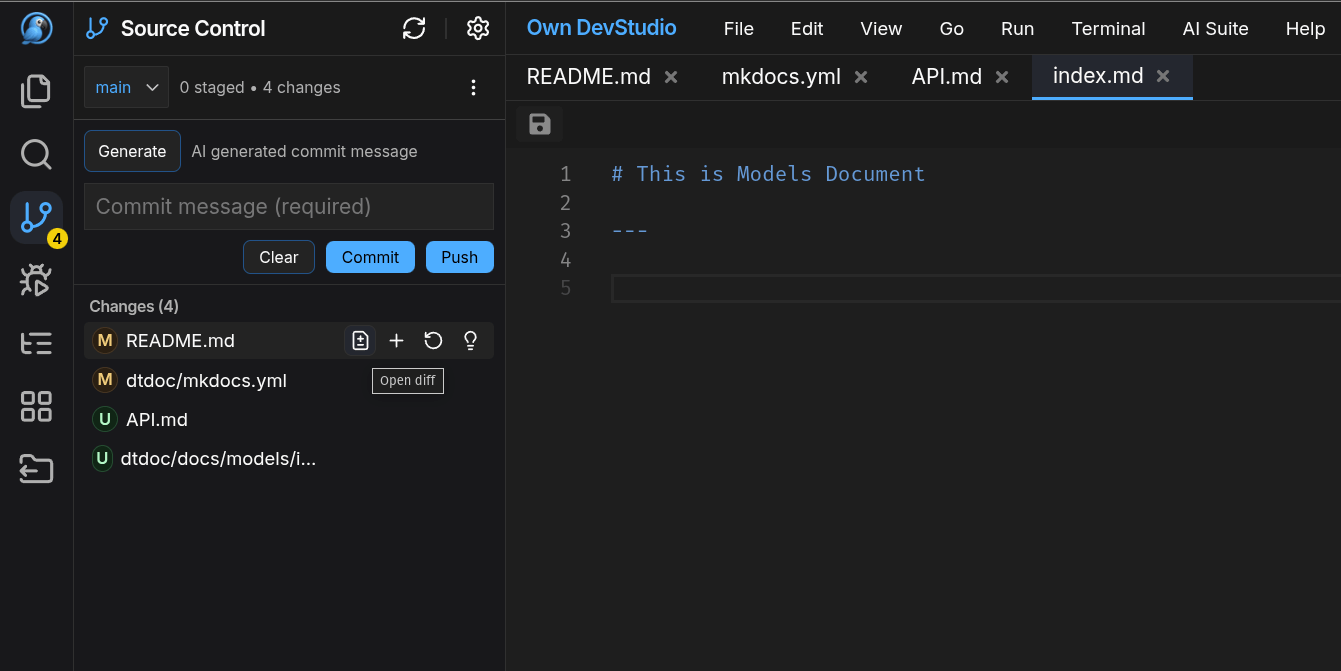
The Source Control panel lets you clone, stage, commit, push/pull, view diffs, and discard changes — all from the UI.
🚀 Quick Start
1) Clone a repository
- Open Source Control from the Activity Bar.
- Click Clone (or … → Clone Repository from Workspace Manager), paste the repo URL, and choose a root workspace folder.
2) Make changes → Stage → Commit
- Edit files in the editor.
- In Changes, hover the file and click + to Stage a file.
- Enter a commit message (or click Generate for an AI message) and press Commit.
3) Push
- Press Push to send commits to the current remote branch.
- Use the dropdown to switch branches when needed.
- Pull updates with … → Pull
- Use the
Refresh/Synctop icons when dont see changes.
🧰 All Common Operations
| Operation | Where in UI | CLI Equivalent |
|---|---|---|
| Clone | … menu → Clone Repository | git clone <url> |
| Initialize repo (if none) | … → Initialize Repository | git init |
| Stage | + next to file / context menu | git add <file> |
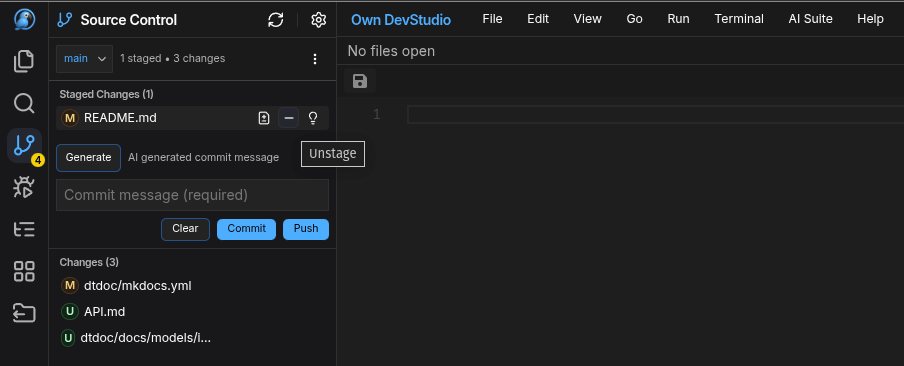
| Unstage | In Staged Changes → – | git reset <file> |
| Commit | Enter message → Commit | git commit -m "msg" |
| AI commit msg | Generate (above commit box) | — |
| Push | Push button | git push |
| Pull | … → Pull | git pull |
| Fetch | … → Fetch | git fetch |
| Diff | Click file label or open diff icon | git diff |
| Discard changes | File menu → Discard Changes | git checkout -- <file> |
| Add new file | Explorer → New File (auto appears in Changes) | touch file && git add |
🔍 Diffs & History
- Click a file in Changes to open a side-by-side diff.
- Use the inline toolbar to copy hunks or open the working file.
🔀 Branches
- Current branch is shown at the top-left of the Source Control panel.
- Use the branch dropdown to create, switch, or track remotes.
- When creating a new branch, push once to publish it to the remote.
💡 Tips
- Stage only the files you intend to commit — smaller commits are easier to review.
- Use the Generate button to draft a clean, descriptive commit message (you can edit it before committing).
- Hover on a file row for quick actions: Stage/Unstage, Discard, Open Diff, Reveal in Explorer.
Next Steps
- Use Terminal for advanced Git commands or scripts.