Explorer
The Explorer is your project’s control center — it displays your entire folder tree, manages files, and helps you quickly navigate between project assets, documentation, and configuration files.
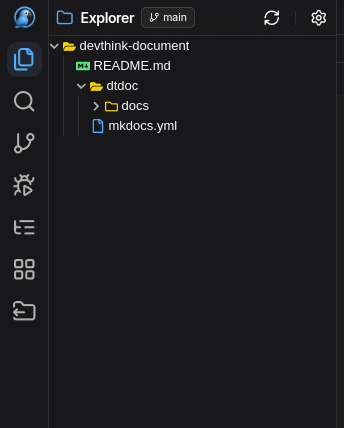
🧭 Overview
The Explorer panel appears on the left side of Own DevStudio.
It mirrors your local file system and is always in sync with your workspace folder.
Typical structure:
Each file and folder listed here represents the real structure on your machine — not a virtual view.
📁 Common Actions
Just like in VS Code, you can perform all essential file and folder operations directly in the Explorer.
Note
To perform operations Hover on File/Folder and see available options.
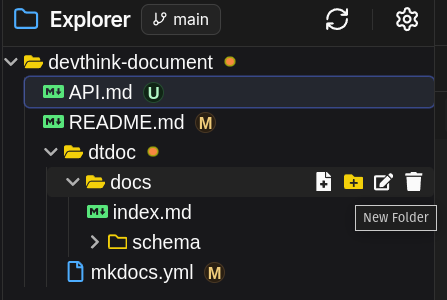
- Create new file
- Create new folder
- Rename item
- Delete item
- Open file
- Drag & Drop
- Refresh
All operations are instant — they update both your workspace and the actual file system.
⚙️ Keyboard Shortcuts
Only nevigation keys.
After stable update other shortcuts will be available.
Next Steps
Continue your learning journey with:
👉 Editor — Learn about editing, themes, and multi-tab handling
👉 AI Assistant — Use AI to generate, refactor, and explain code