Editor
The Editor is the heart of Own DevStudio — where you write, edit, and manage your code and documentation.

🧭 Overview
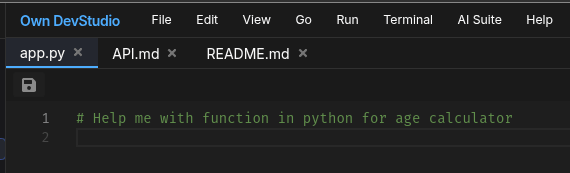
The Editor supports multi-tab editing, syntax highlighting, and inline or quick message box smart AI assistance.
Every opened file appears as a tab at the top, allowing easy switching between them.
Example: See above image
Each tab represents an open document in your current workspace.
Warning
When file is open in editor do not modify same file using other editors or desktop level. It will not sync atumatically as of now. Need reload of file.
✍️ Editing Experience
Syntax Highlighting
Own DevStudio automatically detects file types — Markdown, YAML, JSON, Python, JS, and more — and applies proper syntax colors.
Line Numbers & Guides
- Line numbers are visible by default.
- Subtle column guides (80/120 chars) help maintain clean code width.
Tabs & Indentation
- Default tab size: 2 spaces (customizable).
- Press Tab or Shift + Tab to indent or unindent selected lines.
⚙️ Tab & Split View
- Open multiple files at once — each gets its own tab.
- Click + drag Not provided for tab ordering.
- Click close button to close it instantly.
🧠 AI-powered Editing
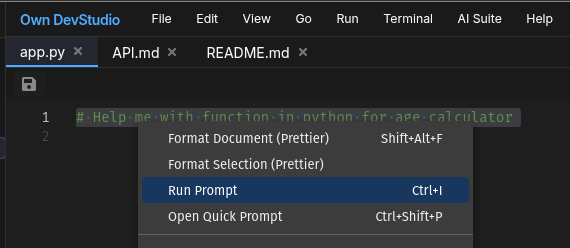
The editor integrates with the AI Assistant for real-time help. See below image:
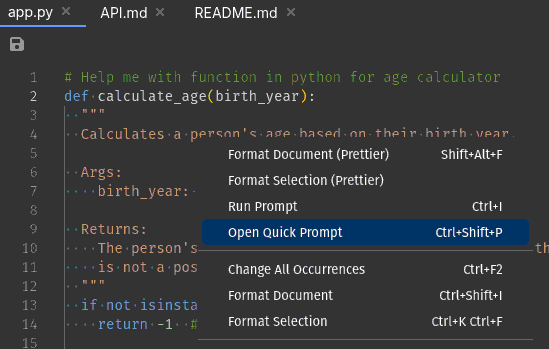
- Select + Right-click on selection to get menu. Find [Run Prompt] a Inline AI prompt executer or.
You can also trigger inline AI suggestions via:
Ctrl + I
- See below image:
What is possible with Run-Prompt?
- 💬 Ask AI to explain a section of code.
- ✨ Refactor code snippets.
- ✨ Summarize large files or configs.
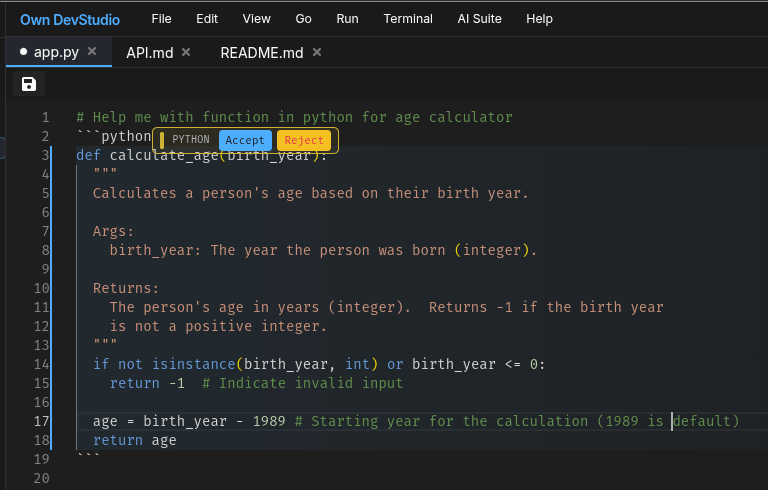
- ✨ Generate any language code.
- See below image AI generated output (You can Accept or Reject it):
- Another AI Support
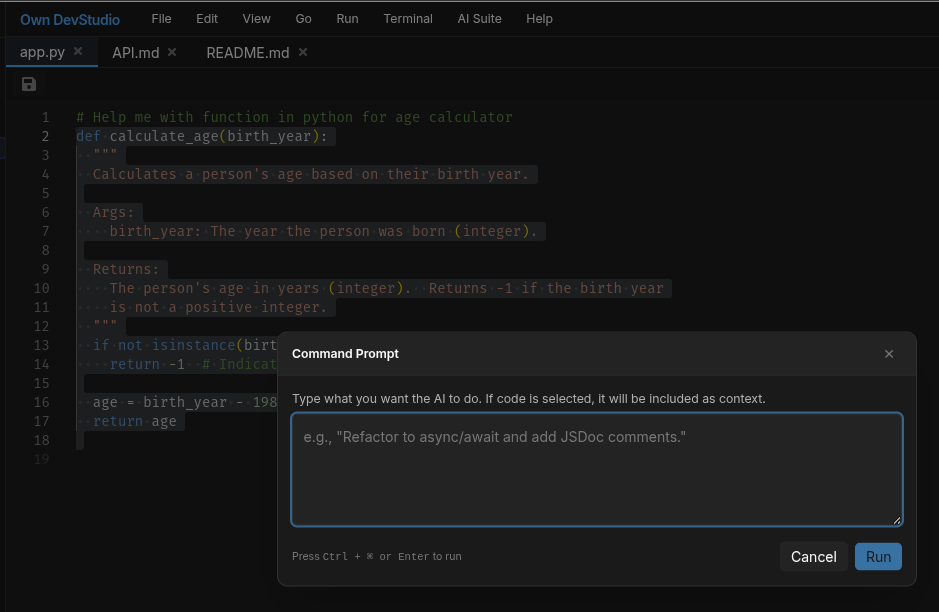
Quick Prompt Window(You can open it using Ctrl + Shift + P):

Must
You must select code if want any specific output, otherwise entire file context is considered for Quick Prompt Window.
- See Quick Prompt below
⌨️ AI Editing Keyboard Shortcuts
| Shortcut | Action |
|---|---|
| Ctrl + I | Run selected prompt |
| Ctrl + S | Save file |
| Ctrl + Shift + P | Open Quick Prompt Window |
| Ctrl + Enter | Execute Quick Coomand Prompt |
🧩 Code Intelligence
- Auto-completion use inline run prompt to complete any task you want.
- Human verification and so you can accept and reject it.
- Hover info for functions and variables.
📝 Code Formating
Two default options are availalbe:
- Preitier formating
- Default Editor formating
Select the code and click Format Document or without select entire document can be formated. Use these shortcut keys for Preitier formating Shift + Alt + F
⚡ Performance
Own DevStudio Editor is optimized for:
- Lightweight startup (no remote loading)
- Offline syntax libraries
- Persistent undo history per file
Even large configs (like mkdocs.yml or schema files) open easily.
🎨 Themes & Layout
The editor inherits global default dark theme. No customization available.
Next Steps
Continue learning:
👉 AI Assistant — See how to use AI directly in the editor
👉 Git — See how to use Git in the editor
👉 Terminal — Run commands and builds right beside your code