Activity Bar
The Activity Bar is the main navigation hub of Own DevStudio.
Each icon represents a feature area, and clicking one will open or hide its corresponding panel.
🧭 Overview
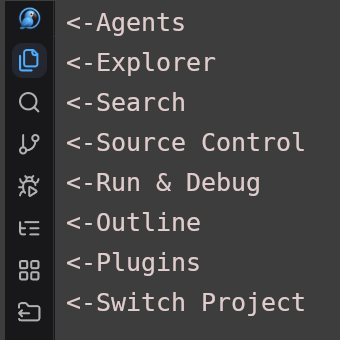
The Activity Bar appears along the left edge of the interface. It lets you quickly switch between different panels — such as the Explorer, Search, Git, Switch Project, Terminal, and more.
It’s designed for fast access and clean context switching — similar to modern IDEs like VS Code, but optimized for AI-native workflows.
You can:
- Click an icon → open its panel.
- Click again → hide that panel.
- Hover → see tooltips for each section.
💡 Tip: Use the bar to keep your workspace minimal — show only what you need.
🔹 Default Icons & Panels
| Icon | Panel / Function |
|---|---|
 Agents Agents |
Shows your Agents (coming soon). |
| 📁 Explorer | Shows your workspace files and folders. |
| Search | Lets you search within your entire project. |
| Git & Repos | Displays source control, changes, and branches. |
| Run / Tasks | Coming soon... |
| Outline | Show current open code outline & allow searching. |
| Extensions / Plugins | Coming soon... |
| Switch Project | Close current project and go to Select Project. |
(Your setup may vary slightly depending on enabled modules.)
⚙️ Behavior
- Only one panel is visible at a time to maintain focus.
- Clicking another icon automatically switches the visible panel.
- The last opened panel stays active across sessions.
You can also resize or collapse the opened panel for a cleaner layout.
🎨 Customizing the Bar
You can not customize the bar as of now
⌨️ Keyboard Shortcuts
Not assigned yet (To-Do).
Next Steps
Continue exploring:
👉 Explorer – to open and navigate your workspace